

Client Portal Access Setup
Guide for configuring user accounts in Revaly, including password resets, and MFA setup.
This guide explains how to access the Revaly Client Portal, including logging in with multi-factor authentication (MFA), setting up a new user account, and resetting your password.
When a new user account is created, you will receive an email invitation containing your login details and a temporary password. During your first login, you will be required to create a new password and complete the multi-factor authentication (MFA) verification process.
Revaly previously supported authenticator apps for MFA. The Client Portal now uses verification codes sent by email.
Logging in to the Client Portal (Email MFA)
Revaly uses multi-factor authentication (MFA) to secure access to the Client Portal. After entering your password, you will receive a one-time verification code sent to your email address.
Follow these steps to log in:
- Go to https://app.revaly.co.
- Enter your email and password, then click Log In.
- On the Send Code screen, click Send Verification Code.
- Check your email for the verification code.
- Enter the code on the screen and click Verify.
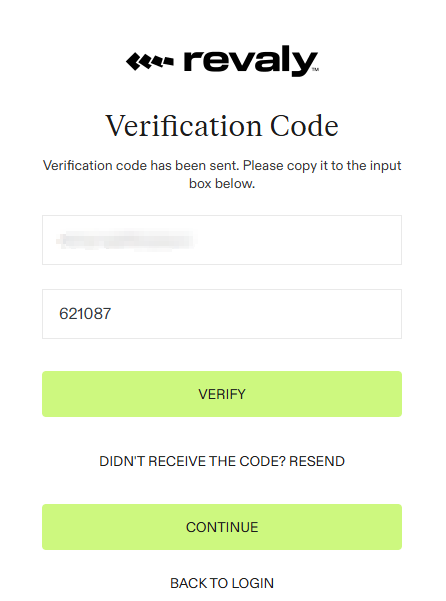
- Click Continue.
You will then be logged into the Client Portal.
Setting Up Your Account for the First Time
Here’s an example of the invitation email you’ll receive:
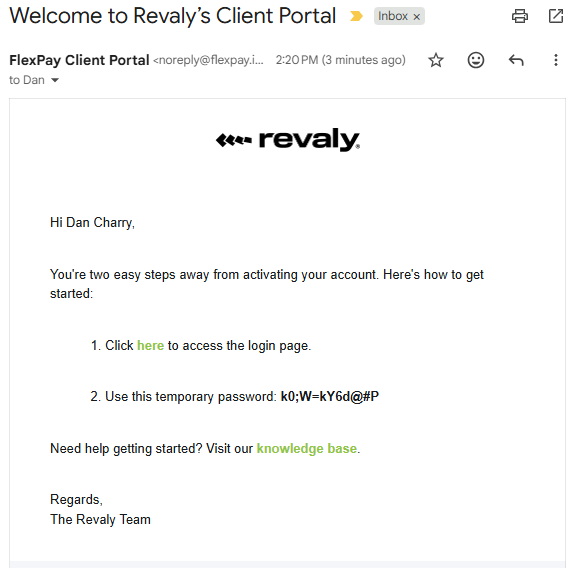
Follow these steps to finish setting up your account access:
- Open the login link provided in the email, or visit https://app.revaly.co in your browser.
- Enter your email and temporary password, then select Log In.
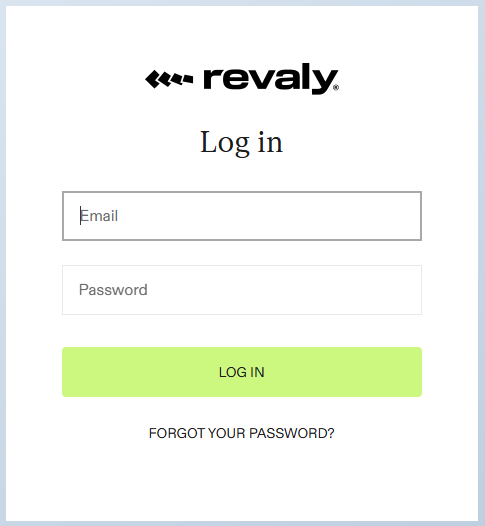
- On the "Reset Password" screen, enter the temporary password again, followed by a new password. The password must be at least 8 characters, with at least one uppercase letter, one number, and one symbol.
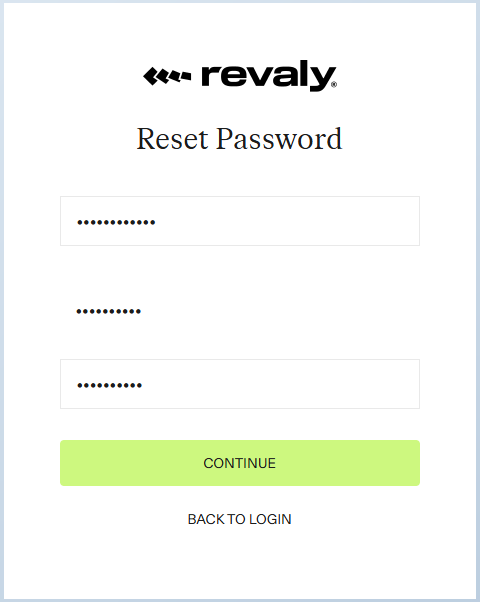
- Click Continue.
- Next, set up multi-factor authentication (MFA). After resetting your password, you will see a "Verification Code" screen.
- Click "Send Verification Code." A verification code will be sent to your registered email.
- Check your email inbox, retrieve the code, and enter it on the Verification Code screen.
- Click Verify.
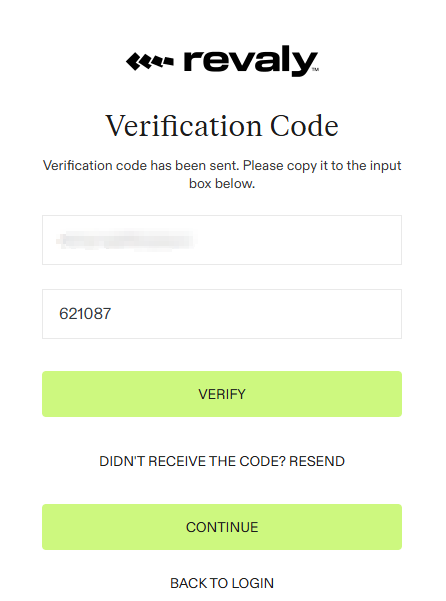
- Click Continue.
The page will refresh, and your user account setup is complete. You will be logged into the Client Portal.
Once these steps are complete, future logins will require the verification code sent to your email after entering your password.
Resetting your Password
If you forgot your password and need to create a new one, please follow these steps:
- Go to https://app.revaly.co
- Click "Forgot your password?"
- Enter your email address, then click "Send Verification code."
- Check your inbox for the code, enter it, and click "Verify"
- Click Continue.
- On the "Create Password" screen, enter a new password for your account, then click Continue.
Your password has been reset, and you will be automatically logged into the portal.
Updated 8 months ago