

Enterprise with Scheduler
Introduction
The purpose of this document is to guide you through the steps required to integrate your CRM with Revaly’s payment performance platform using the Enterprise with Scheduler integration.
With this integration, Revaly operates as an intermediary layer between your system of record and your payment gateway, optimizing authorization decisions across all payment attempts, including customer-initiated payments, rebills, and retries. In addition, Revaly assumes responsibility for executing and scheduling retries, removing the need for the merchant to manage retry timing or orchestration.
Revaly applies a set of approval-optimizing treatments across the full payment lifecycle to increase approval rates and reduce involuntary churn. These treatments operate at different stages of the payment flow:
- Pre-authorization treatments improve the quality and structure of payment requests before they are submitted to the gateway.
- Post-authorization treatments intelligently reattempt failed payments using optimized timing and adaptive logic, executed automatically by Revaly’s scheduler.
- Outreach treatments engage customers through email and SMS when automated retries are no longer recommended, using campaigns informed by behavioral science.
Together, these treatments form a unified optimization layer that improves payment outcomes while preserving a seamless customer experience.
To support this model, your integration must adjust how payment attempts are routed and how retry results are retrieved. The following changes are required.
Route all payment attempts through Revaly: All payment attempts must be sent to Revaly instead of directly to the payment gateway. This includes customer-initiated payments as well as recurring rebills. Revaly acts as the decisioning and orchestration layer, applying optimization logic before forwarding the payment to the gateway.
Allow Revaly to execute retries: When a payment attempt is not approved, Revaly may return a recommended retry date and time in its API response for MITs. In the Enterprise with Scheduler model, Revaly’s scheduler executes the retry automatically according to this recommendation. Your system does not need to persist or schedule retries.
Retrieve results via the List endpoint: Retry outcomes and transaction status updates are retrieved by querying the List Transactions endpoint, typically on a daily basis.
Requirements
To integrate with Revaly’s Enterprise with Scheduler, you will need the following:
- An active Revaly production account
- At least one Company configured in the account (a default Company is created automatically)
- One or more payment gateways configured for each Company
- Revaly Scheduler configured for each Company
- Production API keys generated for each Company
Process Flow
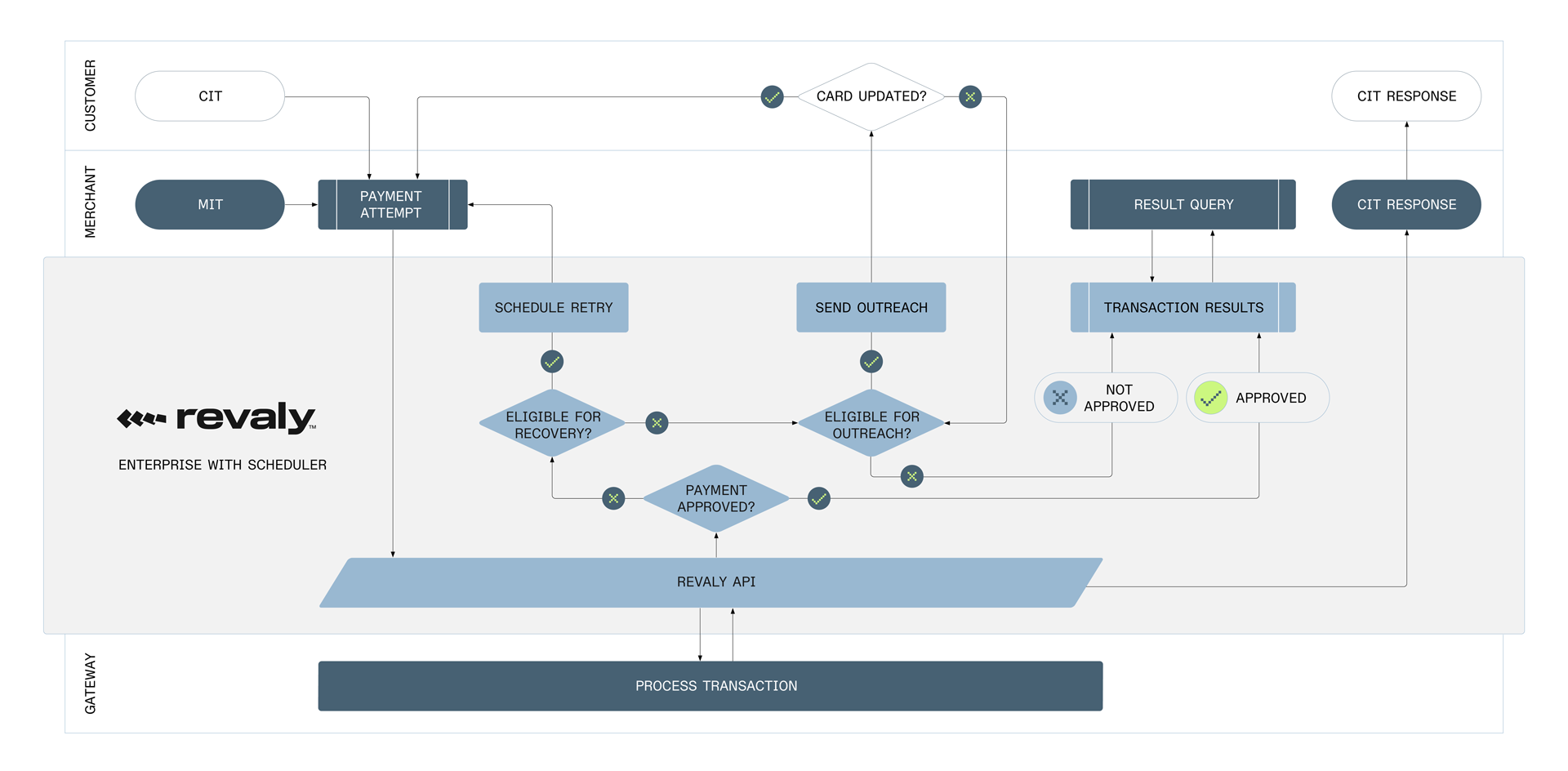
Customer Initiated Transactions
- The customer initiates a payment (CIT) through the merchant’s checkout or payment flow.
- The merchant submits the payment to Revaly’s Payments endpoint.
- Revaly evaluates the payment details and applies applicable treatments, then forwards the payment to the payment gateway.
- The gateway processes the transaction and returns a response to Revaly.
- Revaly returns the authorization result to the merchant in real time.
- If the transaction is approved, the payment is completed successfully.
- If the transaction is declined, no automated retry scheduling is performed as part of the CIT flow. The merchant determines the next customer-facing action.
Merchant Initiated Transactions
- The merchant initiates a rebill (MIT) attempt from the CRM and submits the payment to Revaly’s Payments endpoint.
- Revaly evaluates the payment details and applies treatments as applicable, then forwards the payment to the payment gateway.
- The gateway processes the transaction and returns a response to Revaly.
- If the payment is not approved and a retry is recommended, Revaly automatically schedules and manages the next payment attempt, with no retry scheduling required by the merchant.
- At the scheduled time, Revaly triggers the retry by submitting the retry attempt to the payment gateway on the merchant’s behalf.
- The merchant queries the List Transactions endpoint to retrieve the status and results of all payments currently in the approval process, typically on a daily basis.
- If the payment cannot be approved through Intelligent Timing (for example, retry limits are reached, or a hard decline is received), Revaly evaluates whether the transaction is eligible for Outreach.
- If eligible, Revaly initiates Outreach by sending email and/or SMS messages to the customer based on a predefined campaign. Revaly scheduled a final retry attempt several days or weeks in the future to allow the campaign to run.
- If the customer updates their payment details through Outreach, a new payment attempt is triggered and processed through Revaly. The response is returned to the merchant.
- If the transaction is not approved through the Outreach campaign, Revaly marks the payment as a hard decline, indicating the end of the approval process.
Merchant Initiated Transactions (ex. Outreach)
- The merchant initiates a rebill (MIT) attempt from the CRM and submits the payment to Revaly’s Payments endpoint.
- Revaly evaluates the payment details and applies treatments as applicable, then forwards the payment to the payment gateway.
- The gateway processes the transaction and returns a response to Revaly.
- If the payment is not approved and a retry is recommended, Revaly automatically schedules and manages the next payment attempt, with no retry scheduling required by the merchant.
- At the scheduled time, Revaly triggers the retry by submitting the retry attempt to the payment gateway on the merchant’s behalf. Revaly continues this process until one of the following events takes place:
- The transaction approves.
- The transaction hard declines.
- A configuration limit is reached (by default, a maximum of 15 retry attempts or 30 days, whichever occurs first).
- The merchant instructs Revaly to stop the approval process (for example, if the customer cancels their subscription).
- The merchant queries the List Transactions endpoint to retrieve the status and results of all payments currently in the approval process, typically on a daily basis.
Building your Integration
Before sending any transactions to Revaly, a payment gateway must be configured under a Company. The gateway configuration includes the merchant account credentials required for Revaly to connect to the gateway on your behalf.
Gateways can be created through the Revaly client portal. Learn more here.
Once gateways are configured, your integration will primarily interact with Revaly’s API through the Payments endpoint. This endpoint is used to submit payment attempts to Revaly, including customer-initiated payments and rebills. Revaly evaluates each payment attempt and applies a sequence of treatments designed to increase the likelihood of approval before forwarding the transaction to the payment gateway.
Additional endpoints, such as Refund-Cancel and List, are also available for managing post-authorization payment actions.
The following sections describe these endpoints and their usage in more detail.
Payments
API Reference: Payments Request
Your primary interaction with Revaly is through the Payments endpoint. All payment attempts must be submitted to this endpoint.
When Revaly receives a Payments request, it evaluates the transaction and applies approval-optimizing treatments before forwarding the payment to the configured gateway. These treatments may be applied before authorization, after an unsuccessful attempt, or across multiple attempts, depending on the transaction outcome. The gateway response code and message, along with the request details you provided, are analyzed and returned to your system in real time.
You can expect the response time to be comparable to a direct gateway transaction, typically with only a few hundred milliseconds of additional latency.
When a payment attempt is not approved, Revaly evaluates the response. If a retry is recommended, the response will include a retryDate. At that point, the transaction is automatically managed by Revaly’s scheduler, which will execute the retry and any subsequent recovery steps according to the configured recovery process. Your system does not need to persist or schedule the retry. If no retry is recommended, the retryDate field will be returned as null, and the response code and message will indicate the final outcome.
Authorize and Capture are not supported for Enterprise with Scheduler.
Method: POST
URL: https://api.revaly.co/payments
Refer to the API reference documentation for detailed instructions on payload structure and field definitions. While the endpoint supports a large number of fields, only a subset is required. Some fields are especially important, as they enable Revaly’s treatment engine to make effective approval decisions, while others are optional and may assist with reconciliation or reporting. The sections below highlight the most critical fields to prioritize.
Required Fields
Required fields may vary depending on the payment method used. For example, certain fields are mandatory for credit card transactions but may not be required when submitting a payment gateway token, and vice versa. The sections below highlight the most critical fields to prioritize based on the payment method.
Although recovery.retryCount and recovery.paymentReferenceData are not strictly required for the API to accept a request, they are included in this section because they are essential for correct retry handling and are expected in most integrations.
For Credit Card Transactions
- merchantTransactionId
- orderId
- amount
- currency
- customerId or email or subscriptionId
- paymentMethodType
- paymentMethod.creditCard.number
- paymentMethod.creditCard.expiryMonth
- paymentMethod.creditCard.expiryYear
- paymentMethod.fullName OR paymentMethod.firstName AND paymentMethod.lastName
- paymentMethod.merchantAccountReferenceId OR gatewayRoutingId
- recovery.retryCount
- recovery.paymentReferenceData
For Gateway Payment Token Transactions
- merchantTransactionId
- orderId
- amount
- currency
- customerId or email or subscriptionId
- paymentMethodType
- paymentMethod.gatewayPaymentMethod.gatewayPaymentMethodId
- paymentMethod.merchantAccountReferenceId
- recovery.retryCount
- recovery.paymentReferenceData
Highly Recommended Fields
The following fields are not required by the API definition, and Revaly can operate without them. However, they are recommended. If these fields are available, please ensure they are included in your request.
- issuerIdentificationNumber
- paymentMethod.billingAddress
- mitStoredTransactionId
- paymentPlanData.billingPlan
- paymentPlanData.billingCycle
- recovery.dateFirstAttempt
- initiatedBy
Gateway Fields
Some payment gateways support additional, gateway-specific options that are not part of Revaly’s standard payment fields. To support these variations, Revaly allows you to include gateway fields, which are optional parameters that apply only to a specific gateway.
Gateway-specific fields are nested under a key that identifies the gateway type. For example, when using Stripe Payment Intents, fields can be provided under gatewayFields.stripe_payment_intents:
"gatewayFields": {
  "stripe_payment_intents": {
    "metadata": "value",
    "statement_descriptor_suffix": "value",
    "setup_future_usage": "value",
    "customer_id": "value",
    "off_session": true
  }
}
Fields defined under a given gateway type are applied only when the payment is routed to that gateway. If a gateway-specific field is included for a gateway that does not support it, the field is ignored and does not affect processing.
This allows you to pass gateway-specific options when required without changing your core integration logic.
Outreach Fields
If Outreach is enabled as part of your integration, additional fields are required to support customer messaging and campaign execution. These fields allow Revaly to identify the customer, select the appropriate communication channels, and deliver Outreach messages when retry-based optimization is no longer recommended.
- recovery.customerAccountNumber
- recovery.customerBalance
- recovery.disableSMSNotification
- recovery.disableEmailNotification
- paymentMethod.email (if sending email outreaches)
- paymentMethod.billingAddress.phoneNumber (if sending SMS outreaches)
Example Payment Requests
{
  "paymentMethod": {
    "creditCard": {
      "number": "4000000000009995",
      "expiryMonth": "12",
      "expiryYear": "2026"
    },
    "billingAddress": {
      "address1": "123 Main St",
      "city": "New York",
      "state": "NY",
      "zip": "10001",
      "country": "US"
    },
    "fullName": "John Doe",
    "email": "[email protected]",
    "merchantAccountReferenceId": "stripePI"
  },
  "paymentMethodType": "creditCard",
  "initiatedBy": "MIT",
  "merchantTransactionId": "trax_0023198506",
  "orderId": "order_67890",
  "customerId": "cus_98063",
  "amount": 1999,
  "currency": "USD",
  "mitStoredTransactionId": "MT03190947",
  "paymentPlanData": {
    "billingPlan": "monthly",
    "billingCycle": 6
  }
}
{
"response": {
"errorCode": "insufficient_funds",
"errorDetail": "Your card has insufficient funds."
},
"transactionId": "06DV7P33NM00002A0028DPWXABHDC",
"transactionDate": "2026-01-12T20:14:21.613Z",
"transactionStatus": 2,
"message": "The card has been declined due to insufficient funds.",
"responseCode": "20023",
"transactionType": "Charge",
"merchantTransactionId": "trax_0023198507",
"customerId": "cus_98063",
"gatewayRoutingId": "KLEZF3J7ORIE5D3RAGECKWYHVM",
"currency": "USD",
"amount": 1999,
"gatewayType": "stripe_payment_intents",
"gatewayTransactionId": "ch_3SorVKGDZrL0TUCj0TqYYLYz",
"retryDate": "2026-01-13T13:00:00Z",
"mitStoredTransactionId": "MT03190947",
"orderId": "order_67890",
"engagedRecoveryState": 0,
"paymentPlanData": {
"billingPlan": "monthly",
"billingCycle": 6
},
"recovery": {
"disableCustomerRecovery": false,
"retryCount": 0,
"paymentReferenceData": "WAABADQcaywXUt4IUsmS7T90UE6PcQGIJVsHq4bbnVLi1koAAAABm7PYY60=",
"dateFirstAttempt": "2026-01-12T20:14:21.613Z"
},
"paymentMethod": {
"paymentMethodId": "PL7HP5FPFIIENFW6AGN3HWDDVU",
"creditCardNumber": "400000******9995",
"expiryMonth": "12",
"expiryYear": "2026",
"cvv": "",
"fullName": "JOHN DOE",
"customerId": "cus_98063",
"billingAddress": {
"address1": "123 MAIN ST",
"city": "NEW YORK",
"state": "NY",
"zip": "10001",
"country": "US"
},
"shippingAddress": {},
"email": "[email protected]",
"paymentMethodType": "CreditCard",
"lastFourDigits": "9995",
"firstSixDigits": "400000",
"cardType": "VISA",
"dateCreated": "2026-01-12T20:14:21.613Z",
"storageState": "Cached",
"bin": "400000"
}
}You’re not just sending transaction data for Revaly to process asynchronously. In most cases, we will process the transaction immediately and return a response with the result from your gateway. It's your choice whether to use this response or wait for the next LIST Transaction request.
The CRM must capture and process the response based on the responseCode field.
Approved Transaction (Response Code: 10000): If the transaction is approved, the payment should be treated as successful and the subscription or account should remain (or be returned to) good standing. No further action is required for this payment attempt.
Soft Decline (Response Code: 20000-29999): These response codes indicate that the payment was not approved but is not a permanent failure and can be reattempted according to network rules. Revaly schedules and triggers the subsequent attempts.
Hard Decline (Response Code: 30000-49999): These response codes indicate that no further retries are recommended. At this point, you should proceed with your existing business logic for handling unsuccessful payments, such as account suspension or customer notification.
API Error (Response Code: 50000-59999): Response codes in this range indicate an issue with the request sent to Revaly. Review the request payload and correct any validation or configuration errors before retrying.
Notify
API Reference: Notify
The Notify endpoint is used to inform Revaly about business events related to Outreach and customer engagement.
The type of event being reported is specified using the required eventType field. Based on the event type, Revaly updates internal state, customer data, or campaign execution accordingly.
The Notify endpoint supports the following event types:
-
recordPayment: Used to notify Revaly that a customer has successfully completed a payment outside of Revaly’s Payments flow, for example as a result of an Outreach campaign where the payment is processed directly by the merchant. When this event is received, Revaly records the successful payment outcome and automatically stops any active Outreach campaign associated with the customer.
-
recordRefund: Used to notify Revaly that a refund has been processed outside of Revaly’s Payments flow for a payment that was originally approved by Revaly.
If your integration routes all payment attempts through Revaly’s Payments endpoint, this event is not required, as Revaly already receives and processes the payment result directly.
-
updateCustomerData: Used to update customer information relevant to Outreach, such as email address, phone number, or communication preferences (for example, SMS opt-in or opt-out).
-
endEngagedRecovery: Used to explicitly end an active Outreach campaign, such as when a subscription is cancelled or the merchant determines that no further engagement should occur.
Method: POST
URL: https://api.revaly.co/notify
Example
{
  "eventType": "recordPayment",
  "data": {
    "merchantTransactionId": "merch_txn_abc123",
    "orderID": "order_456789",
    "customerId": "customer_123",
    "amount": 2500,
    "currency": "USD",
    "customerAccountNumber": "ACC-001234",
    "disableSmsNotification": false,
    "disableEmailNotification": false
  }
}
{
"eventType": "recordRefund",
"data": {
"transactionId": "1234567890abcdef",
"merchantTransactionId": "merch_txn_abc123",
"orderID": "order_456789",
"customerId": "customer_123",
"amount": 2500,
"currency": "USD",
"customerAccountNumber": "ACC-001234",
"disableSmsNotification": false,
"disableEmailNotification": false
}
}{
"eventType": "updateCustomerData",
"data": {
"customerId": "customer_123",
"customerAccountNumber": "ACC-001234",
"disableSmsNotification": true,
"disableEmailNotification": false,
"contactInformation": {
"firstName": "Jane",
"lastName": "Smith",
"phoneNumber": "+1987654321",
"email": "[email protected]"
},
"address": {
"address1": "456 Oak Ave",
"city": "Los Angeles",
"state": "CA",
"zip": "90210",
"country": "US"
}
}
}{
"eventType": "endEngagedRecovery",
"data": {
"customerId": "customer_123"
}
}Receiving Payment Results
Once a payment has been submitted to Revaly, merchants need a way to receive the outcome of the transaction and any subsequent actions performed by the Scheduler.
Revaly provides two mechanisms for accessing payment results:
- Webhooks (recommended) for near real-time notifications.
- List Transactions Endpoint for retrieving the status of transactions processed within a specific time period.
For most integrations, webhooks should be considered the primary mechanism for receiving payment updates.
1 - Webhooks
Webhooks allow Revaly to notify your systems whenever a significant event occurs during the payment lifecycle. Instead of periodically polling the API for updates, your application can receive event notifications as soon as they occur.
Events are delivered to an HTTPS endpoint that you configure and can be used to keep your CRM, subscription platform, or internal systems synchronized with payment activity.
Common Use Cases
Webhook notifications can be used to:
- Mark an order as paid after a successful approval.
- Update subscription status after a payment failure.
- Record when Revaly schedules a future retry attempt.
- Track retry outcomes.
- Synchronize payment activity with reporting and analytics systems.
- Trigger internal workflows based on payment events.
Supported Events
Revaly publishes webhook events for key stages of the payment lifecycle, including Transaction succeeded, Transaction declined, Retry scheduled, and Recovery started.
The examples above are not exhaustive. For a complete and up-to-date list of supported webhook events, see the Webhook Event Reference. Revaly continues to expand webhook coverage as new event types become available.
Configuring Webhooks
Before receiving webhook events, you must configure one or more webhook endpoints within Revaly. Each endpoint can subscribe to the specific event types your application requires.
For setup instructions, see Configure a Webhook Endpoint.
Verifying Webhook Signatures
To ensure webhook events originated from Revaly and were not modified in transit, all webhook deliveries should be verified using the signature included with each request.
For implementation details, see Verify Webhook Signatures.
2 - List Transactions Endpoint
API Reference: List Transactions
Use the List Transactions endpoint to retrieve the current status of transactions processed within a specific time period. Revaly recommends calling this endpoint on a daily basis to retrieve transactions from the current or previous calendar day.
While webhooks are the recommended mechanism for receiving transaction updates in near real time, the List Transactions endpoint can be used as an alternative when webhook integration is not available.
Multiple query parameters are available to filter and refine the results returned by the endpoint.
| Params | Description |
|---|---|
| order | The sorting order of the returned list. The default is asc, which returns the oldest records first. To list newer records first, use desc. |
| sinceTransactionId | The transaction id of the item to start from (e.g., the last transaction id received in the previous list if iterating through records) By default, unbounded lists are returned in groups of 20 items. If there are more than 20 items in the list, use pagination to retrieve the next set of 20. To enforce determinism in a real-time system, pagination is indexed based on a specific record (as opposed to just a page number as is common in many web apps). To paginate to the next page, simply pass in the transactionId of the last record in the current result set. For instance, if the transactionId of the last transaction in the initial set of twenty transactions returned is JZE57KX6PMSU7MZLAFNIBQWJEQ, use that as the sinceTransactionId parameter to get the next set of 20 starting after that gateway. |
| completedOnly | Request a list of transactions that have completed the approval process. Note: If this parameter is not provided or null, response will return all transactions (Default/Current behavior). |
| responseType | Request the simplified or detailed (Default) response. |
| count | The number of transactions to return. By default, returns 20, maximum allowed is 100. |
| startDate | Date range start of the returned list (Format: YYYY-MM-DDTHH:MM:SS) |
| endDate | Date range end of the returned list (Format: YYYY-MM-DDTHH:MM:SS). To receive transactions from the current day, set this value to a future date (e.g. tomorrow). |
Revaly timestamps are all in UTC
Example:
Method: GET
URL: https://api.revaly.co/transactions?count=100&responseType=simplified☆tDate=2026-02-16T16:54:00.000Z
[
    {
        "transactionId": "06E6ET2HK00000F10023V3KZ5EHXM",
        "transactionDate": "2026-02-16T17:03:35.832Z",
        "transactionStatus": 1,
        "responseCode": "10000",
        "message": "Approved.",
        "transactionType": "Charge",
        "amount": 4014,
        "currencyCode": "USD",
        "merchantTransactionId": "Trx-5294",
        "paymentMethodStorageState": "Cached"
    },
    {
        "transactionId": "06E6ET3M0M0000F1002C5QY3ZDBJ8",
        "transactionDate": "2026-02-16T17:03:44.645Z",
        "transactionStatus": 2,
        "responseCode": "20023",
        "message": "The card has been declined due to insufficient funds.",
        "transactionType": "Charge",
        "retryDate": "2026-02-17T15:00:00Z",
        "amount": 3642,
        "currencyCode": "USD",
        "merchantTransactionId": "Trx-31598",
        "paymentMethodStorageState": "Cached"
    },
    {
        "transactionId": "06E6ET4DWG0000F10026117P8PDR0",
        "transactionDate": "2026-02-16T17:03:51.268Z",
        "transactionStatus": 2,
        "responseCode": "20114",
        "message": "RETRY - The bank has requested that you retrieve the card from the cardholder - it may be a lost card.",
        "transactionType": "Charge",
        "retryDate": "2026-02-17T20:00:00Z",
        "amount": 4619,
        "currencyCode": "USD",
        "merchantTransactionId": "Trx-50237",
        "paymentMethodStorageState": "Cached"
    },
    {
        "transactionId": "06E6ET57BW0000F100252XBASS0RW",
        "transactionDate": "2026-02-16T17:03:57.791Z",
        "transactionStatus": 1,
        "responseCode": "10000",
        "message": "Approved.",
        "transactionType": "Charge",
        "amount": 4602,
        "currencyCode": "USD",
        "merchantTransactionId": "Trx-46937",
        "paymentMethodStorageState": "Cached"
    }
]
[
{
"transactionId": "06E6ET2HK00000F10023V3KZ5EHXM",
"transactionDate": "2026-02-16T17:03:35.832Z",
"transactionStatus": 1,
"responseCode": "10000",
"message": "Approved.",
"transactionType": "Charge",
"amount": 4014,
"gatewayTransactionId": "ch_3T1VCuGDZrL0TUCj0JtZSR6V",
"currencyCode": "USD",
"merchantTransactionId": "Trx-5294",
"merchantAccountReferenceId": "SUPStripeNewID",
"customerId": "Cust-5294",
"orderId": "Order-5294",
"paymentMethodId": "URDVNYRT3BTUBLZXAGOGO2CRVA",
"paymentMethodStorageState": "Cached",
"paymentMethodType": "CreditCard",
"errorDetail": "Payment complete.",
"gateway": {
"token": "HGNED4NRRPDUHLFUAGF2ULAT6Q",
"gatewayType": "stripe_payment_intents",
"name": "stripe_payment_intents",
"referenceId": "SUPStripeNewID"
}
},
{
"transactionId": "06E6ET3M0M0000F1002C5QY3ZDBJ8",
"transactionDate": "2026-02-16T17:03:44.645Z",
"transactionStatus": 2,
"responseCode": "20023",
"message": "The card has been declined due to insufficient funds.",
"transactionType": "Charge",
"amount": 3642,
"gatewayTransactionId": "ch_3T1VD3GDZrL0TUCj15MQh1en",
"currencyCode": "USD",
"merchantTransactionId": "Trx-31598",
"merchantAccountReferenceId": "SUPStripeNewID",
"customerId": "Cust-31598",
"orderId": "Order-31598",
"paymentMethodId": "PUDEOX5ZI5NUNKG6AGOGO2DUAU",
"paymentMethodStorageState": "Cached",
"paymentMethodType": "CreditCard",
"errorCode": "insufficient_funds",
"errorDetail": "Your card has insufficient funds.",
"gateway": {
"token": "HGNED4NRRPDUHLFUAGF2ULAT6Q",
"gatewayType": "stripe_payment_intents",
"name": "stripe_payment_intents",
"referenceId": "SUPStripeNewID"
}
},
{
"transactionId": "06E6ET4DWG0000F10026117P8PDR0",
"transactionDate": "2026-02-16T17:03:51.268Z",
"transactionStatus": 2,
"responseCode": "20114",
"message": "RETRY - The bank has requested that you retrieve the card from the cardholder - it may be a lost card.",
"transactionType": "Charge",
"amount": 4619,
"gatewayTransactionId": "ch_3T1VDAGDZrL0TUCj1ciZ9Ese",
"currencyCode": "USD",
"merchantTransactionId": "Trx-50237",
"merchantAccountReferenceId": "SUPStripeNewID",
"customerId": "Cust-50237",
"orderId": "Order-50237",
"paymentMethodId": "4CXGGN33BVKEJHMRAGOGO2EN4Q",
"paymentMethodStorageState": "Cached",
"paymentMethodType": "CreditCard",
"errorCode": "lost_card",
"errorDetail": "Your card was declined.",
"gateway": {
"token": "HGNED4NRRPDUHLFUAGF2ULAT6Q",
"gatewayType": "stripe_payment_intents",
"name": "stripe_payment_intents",
"referenceId": "SUPStripeNewID"
}
},
{
"transactionId": "06E6ET57BW0000F100252XBASS0RW",
"transactionDate": "2026-02-16T17:03:57.791Z",
"transactionStatus": 1,
"responseCode": "10000",
"message": "Approved.",
"transactionType": "Charge",
"amount": 4602,
"gatewayTransactionId": "ch_3T1VDGGDZrL0TUCj1Z1w8NM9",
"currencyCode": "USD",
"merchantTransactionId": "Trx-46937",
"merchantAccountReferenceId": "SUPStripeNewID",
"customerId": "Cust-46937",
"orderId": "Order-46937",
"paymentMethodId": "5GRWAMEWJ3QULI5PAGOGO2FHN4",
"paymentMethodStorageState": "Cached",
"paymentMethodType": "CreditCard",
"errorDetail": "Payment complete.",
"gateway": {
"token": "HGNED4NRRPDUHLFUAGF2ULAT6Q",
"gatewayType": "stripe_payment_intents",
"name": "stripe_payment_intents",
"referenceId": "SUPStripeNewID"
}
}
]The List Transactions requests return several fields that can support reconciliation.
Revaly recommends using the initialMerchantTransactionId for this purpose. The value of this field is provided by your system when the payment is first submitted to Revaly for the approval process.
This identifier remains consistent across every approval attempt processed by Revaly, allowing you to group all related attempts under the same original transaction reference.
Canceling a Recovery or Refunding a Payment
Once an MIT payment fails at the gateway, it enters the Revaly Recovery Process, as described earlier in this guide.
From that point forward, Revaly assumes control of the recovery lifecycle. All subsequent retry attempts are automatically scheduled and triggered by Revaly. The timing and sequencing of these attempts are optimized using AI and machine learning models designed to maximize the probability of approval. The CRM does not manually schedule or trigger any additional attempts once the payment is under recovery.
The recovery process continues until one of the defined exit conditions is met: the transaction is approved, the transaction receives a hard decline, a configuration limit is reached, or the merchant explicitly stops the process via API.
If you need to stop a payment that is currently under recovery, you must use the refund-cancel endpoint.
This endpoint provides a unified mechanism to:
- Cancel the recovery process if the transaction is still active.
- Refund the transaction if it has already been approved.
API Reference: refund-cancel
Example:
Method: POST
URL: https://api.revaly.co/payments/refund-cancel/merchant/Trx-21412
{
    "merchantTransactionId": "Redact-0037619",
    "customerId": "Cust-21412"
}
{
"merchantTransactionId": "Redact-014508",
"customerId": "Cust-95042",
"amount": "1550"
}You can include the amount field in the refund request when you intend to process a partial refund. In that case, Revaly will submit the specified amount to the gateway.
If you are issuing a full refund, the amount field can be omitted. When no amount is provided, the system automatically submits a full refund request to the gateway for the original transaction amount.
Sandbox Testing
Revaly provides a Sandbox environment that mirrors production functionality and is intended for validating your integration before going live. While no real funds are moved, the Sandbox environment is designed to closely replicate real-world payment behavior, so care should be taken when configuring and testing your account.
The Sandbox environment applies to Companies, payment gateways, and API keys. A Company can have both Production and Sandbox API keys. Sandbox API keys can only be used to submit requests to gateways configured in the Sandbox environment.
Not all payment gateways support Sandbox testing. For Sandbox-based testing, Revaly provides a dedicated gateway called Revaly Sandbox, which must be used for the testing scenarios described below.
Refer to the Sandbox Guide for detailed instructions on setting up and executing your tests.
Requirements
The requirements for Sandbox testing are similar to those outlined earlier in this guide, with the following differences:
- A Revaly Sandbox account is required instead of a production account
- A Revaly Sandbox gateway must be configured instead of a production gateway
Please work closely with your Integration Manager to ensure the appropriate Sandbox resources are provisioned.
Test Cases
At a minimum, create one test transaction for each of the scenarios outlined below. These transactions will be reviewed by the Revaly integrations team and are required for integration approval.
Be sure to record the corresponding transaction identifiers for each test scenario.
Test Case 1: Submit a Successful Initial Rebill (MIT)
Submit a rebill payment (MIT) through Revaly that is expected to be approved on the first attempt.
- The request must not include a recovery object.
- The response returns an approved status (responseCode: 10000).
- No retry scheduling is required.
Test Case 2: Testing Scheduling and Approval (using 3rd Party Token)
- RetryCount = 0
- Amount = 9900
- ThirdPartyToken = flexpay_auto_retries_sandbox_soft
- Example: "gatewayPaymentMethodId": "flexpay_auto_retries_sandbox_soft"
- Flow:
- First transaction (sent by Integration Partner) will decline and will automatically schedule a Retry.
- Retry will be executed automatically by the auto retry integration within 5-10 minutes. Second transaction (sent by Revaly Scheduler) will also decline and will automatically schedule a Retry.
- Third transaction (sent by Revaly Scheduler) will approve and there will be no more retries scheduled.
Test Case 3: Testing Scheduling and Approval (using Credit Card)
- RetryCount = 0
- Amount = 9900
- creditCardNumber = Choose from our Testing Guide
- Flow:
- First transaction (sent by Integration Partner) will decline and will automatically schedule a Retry.
- Retry will be executed automatically by the auto retry integration within 5-10 minutes. Second transaction (sent by Revaly Scheduler) will also decline and will automatically schedule a Retry.
- Third transaction (sent by Revaly Scheduler) will approve and there will be no more retries scheduled.
Test Case 4: Testing Scheduling and Hard Decline (using Credit Card)
- RetryCount = 0
- Amount = 9910
- creditCardNumber = Choose from our Testing Guide
- Flow:
- First transaction (sent by Integration Partner) will decline and will automatically schedule a Retry.
- Retry will be executed automatically by the auto retry integration within 5-10 minutes. Second transaction (sent by Revaly Scheduler) will hard decline and there will be no more retries that will be scheduled.
Test Case 5: Testing Scheduling and Hard Decline (using 3rd Party Token)
- RetryCount = 0
- Amount = 9910
- creditCardNumber = flexpay_auto_retries_sandbox_hard
- Example: "gatewayPaymentMethodId": "flexpay_auto_retries_sandbox_hard"
- Flow:
- First transaction (sent by Integration Partner) will decline and will automatically schedule a Retry.
- Retry will be executed automatically by the auto retry integration within 5-10 minutes. Second transaction (sent by Revaly Scheduler) will hard decline and there will be no more retries that will be scheduled.
Test Case 6: Testing a Cancel-Refund request for an Approval
- RetryCount =1
- Amount = 2008
- Payment Method:
- gatewayPaymentMethodId = cus_1234 or creditCardNumber = Choose from our Testing Guide
- Flow:
- Send a Payment request with the values listed above. This should return an approval.
- Send a Refund-cancel request using the merchantTransactionId and customerId from the previous transaction.
- The response should return an approved refund:
- message: "Approved" and responseCode: "10000"
You can also test this scenario with any gateway supported in the sandbox environment. Simply use the values required by your gateway's sandbox to trigger an approval.
Test Case 7: Testing a Cancel-Refund request for a soft Decline
- RetryCount =1
- Amount = 100
- Payment Method: creditCardNumber = Choose from our Testing Guide
- Flow:
- Send a Payment request with the values listed above. This should return a "Do Not Honor" soft decline.
- Send a Refund-cancel request using the merchantTransactionId and customerId from the previous transaction.
- The response should return a hard decline:
- message: "Original transaction has not been captured scheduled recovery has been cancelled." and "responseCode: "30103"
- This indicates that you have successfully cancelled Revaly's recovery process for this payment.
You can also test this scenario with any gateway supported in the sandbox environment. Simply use the values required by your gateway's sandbox to trigger a soft decline.
Test Case 8: Testing a List Transactions Request
- After sending transactions to Revaly in the earlier use cases, send a List Transaction request.
- Use a date range in the parameters that covers the previous use cases.
Test Case 9: Testing List Transaction with Pagination
- When using the List transactions endpoint, you may encounter queries that contain more than the maximum number of records (100). In this case, you'll need to use Pagination to retrieve the additional records.
- Follow this guide to test the Pagination feature
Test Case 10: Testing hard decline response
- RetryCount = 1
- Amount = 3016
- Payment Method: gatewayPaymentMethodId = cus_1234 or creditCardNumber = Choose from our Testing Guide
- Run this test if you are ingesting the result of the transaction response when first sending a decline to Revaly.
- Use the correct values for the Revaly Sandbox gateway, or your chosen gateway's Sandbox endpoint (if available), to send a hard decline request.
Test Case 11: Testing an API validation error
- Run this test if you are ingesting the result of the transaction response when first sending a decline to Revaly.
- Trigger an API validation error by sending an invalid request to Revaly's API. For example: send an empty string ("") or NULL value for "customerId" AND "email".
Updated 2 months ago